
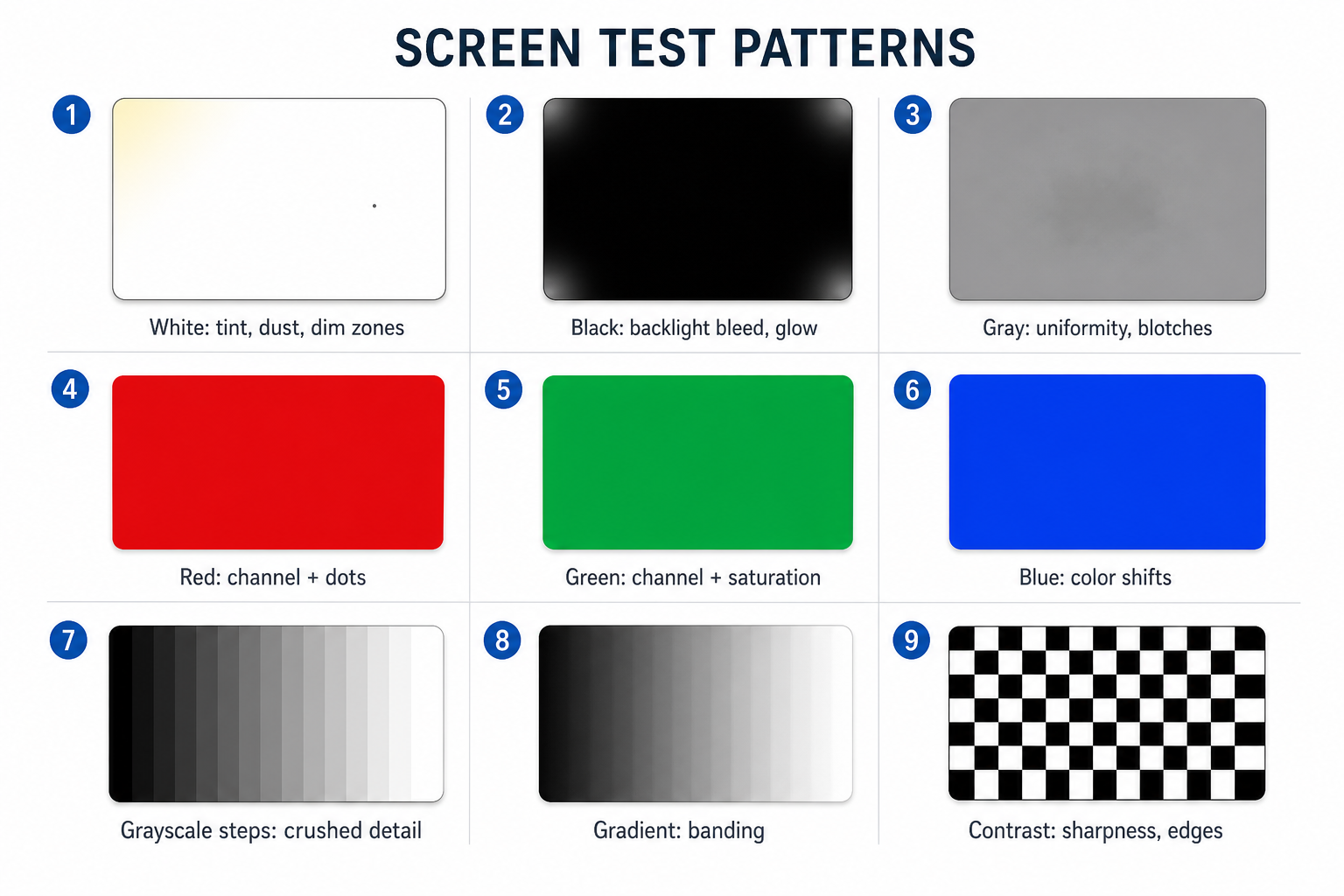
This screen color test displays known browser-generated fields so you can compare the same physical area across white, gray, red, green, blue, near-black, and tonal patterns. Use it to locate visible tint, unevenness, channel behavior, or abrupt tonal transitions. It does not measure color accuracy.
How to run the screen color test
Start with the short sequence and change one condition only when you retest. A problem that stays in the same physical place across several fields is more useful evidence than a difference visible on one color alone.
- Prepare the screen. Clean the glass, remove obvious reflections, and begin at the brightness and picture mode you normally use.
- Open the test on the screen you are checking. Enter fullscreen and inspect the entire field, including the edges and corners.
- Run the quick sequence. Compare white, mid-gray, red, green, blue, near-black, and the smooth gray gradient. Swipe or use the arrow keys to move between fields.
- Track the physical location. Note whether the same patch, line, dot, or color cast remains fixed while the field changes.
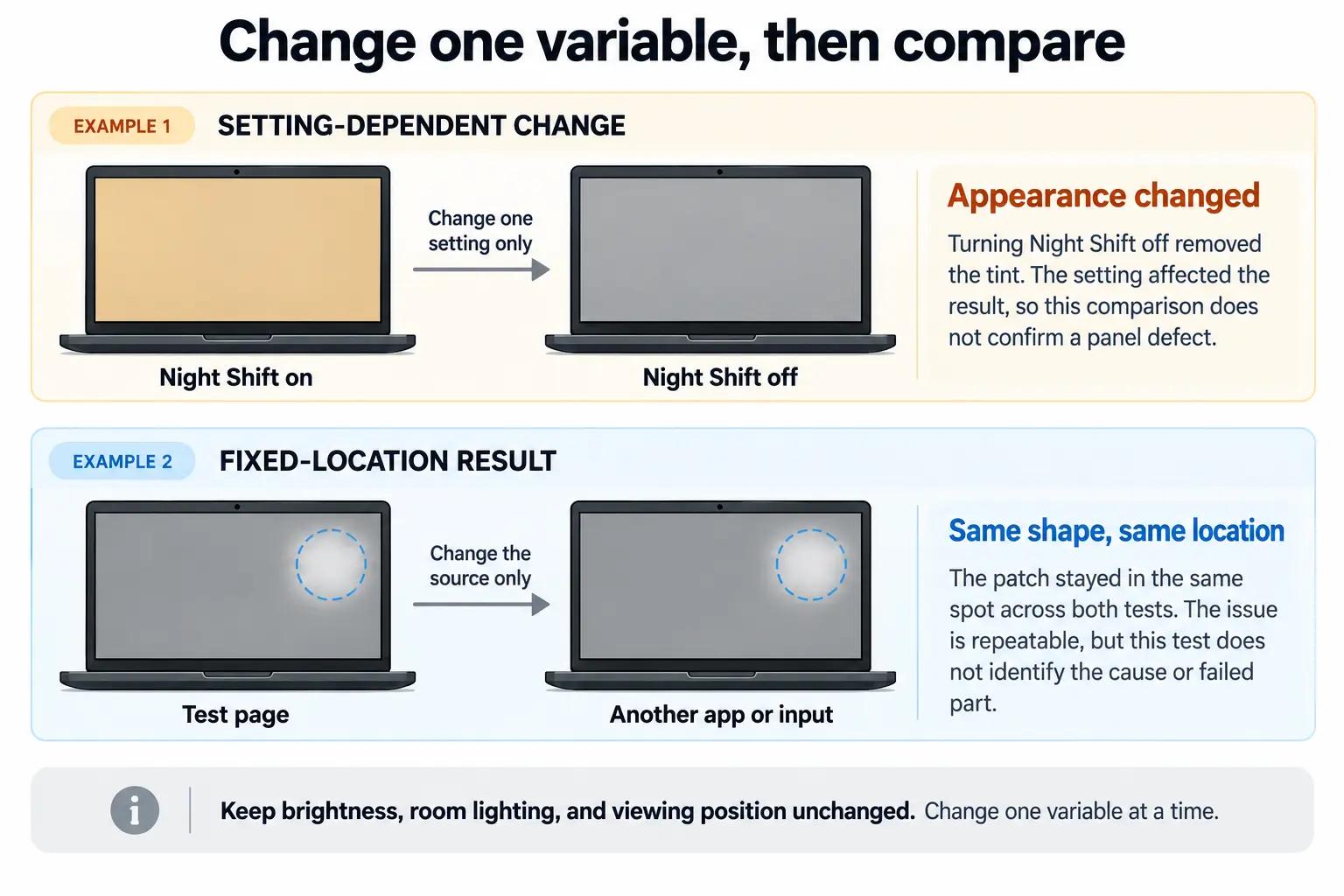
- Repeat after changing one setting or source. If the result is unclear, change only the app, browser, input, picture mode, HDR state, or adaptive-color setting before comparing again.
What each screen color pattern can reveal
Each field isolates a different visual relationship. No field identifies a failed part, and one unusual screen is not enough to classify a defect.
Compare patterns; do not diagnose from one field.
Swipe sideways to compare columns.Scroll table to view all columns.
| Pattern | Inspect for | Does not establish |
|---|---|---|
| White | Broad tint, dim areas, dark points | Color accuracy or cause |
| Mid-gray | Fixed blotches, uneven tint, retained shapes | Burn-in by itself |
| Red | Areas that fail to follow red | A dead pixel by itself |
| Green | Areas that fail to follow green | Channel failure by itself |
| Blue | Areas that fail to follow blue | Channel failure by itself |
| Near-black | Dark uniformity and faint fixed shapes | Black level or contrast ratio |
| Smooth gray gradient | Abrupt bands in a continuous transition | Panel bit depth or cause |
| Black | Bright points, edge light, dark-room uniformity | A color-accuracy result |
| Grayscale steps | Tonal steps that merge at either end | Gamma or calibrated tone response |
| RGB channel ramps | Abrupt changes within one channel | Gamut, white point, or Delta E |
How to interpret what stays fixed and what changes
Interpret the relationship between fields, settings, and sources. The shape and location of the observation usually matter more than how dramatic one test color looks.
A tint appears across white and gray
A broad warm, cool, green, or pink cast may come from the display mode, color temperature, Night Shift or Night Light, True Tone, an accessibility filter, HDR handling, or a color profile. Turn off or record those settings, then compare the same neutral fields again.
If the cast remains visible to your eyes across apps or inputs, photograph it under controlled conditions and check the manufacturer’s model-specific support path. This visual test cannot say how far the display is from a color target.
An uneven patch stays in the same place
A patch that remains fixed on white, gray, and normal content is repeatable display evidence. First rule out reflections, surface contamination, viewing angle, and a source-specific artifact. The browser cannot distinguish panel uniformity variation, pressure damage, retained imagery, or another internal cause from appearance alone.
The gradient or grayscale steps show abrupt transitions
Visible bands can enter anywhere in the image path: the browser, operating system, HDR conversion, color management, graphics output, cable or input, content encoding, or display processing. Compare the same transition in another browser or app and, for an external display, another input before treating the panel as the source.
A dot, edge glow, or retained shape needs a narrower test
The color fields are useful for locating these symptoms, but each belongs to a different diagnostic question.
- One fixed black, bright, or wrong-color dot: Use the pixel test to compare the point across solid fields.
- Light at an LCD edge or corner: Use the backlight bleed test under controlled room lighting.
- A logo, taskbar, keyboard, or interface shape: Use the burn-in test to see whether the shape persists across fields.
- A line, crack, bruise, or pressure-shaped patch: Treat it as possible physical screen damage, not a color-setting problem.
Retest display settings before treating the screen as defective
Automatic tone changes and color management can alter every field without any hardware fault. Record the original state, then change one item at a time so you can identify which change affected the result.
- Return brightness to a normal working level. Extremes may reveal behavior you never see in ordinary use.
- Disable temporary warm-tone features. Check Night Shift, Night Light, Eye Comfort, blue-light reduction, and similar modes.
- Record adaptive display features. True Tone, adaptive color, auto-brightness, and ambient-light adjustments can change during the comparison.
- Compare HDR on and off when the symptom involves HDR content. Keep the app and content path otherwise unchanged.
- Check accessibility color filters. Grayscale, color correction, and contrast filters can make a working display appear discolored.
- Compare another app, browser, or input. A result that follows one source is not yet evidence of a panel-level problem.
- Retest from the same position and lighting. Viewing angle and reflections can move or change while a panel defect remains fixed.
Screen color testing on monitors, phones, laptops, and TVs
The fields stay the same, but the controls that can alter them depend on the device. Test the screen itself, then use the device-specific checks that preserve a controlled comparison.
Monitors and laptop displays
Use the display’s normal resolution and scaling. Record the monitor picture preset, color temperature, HDR state, operating-system profile, and graphics output before changing them. For an external monitor, compare another port, cable, or source only after capturing the first result. On a laptop, an external display can help show whether the difference follows the built-in panel or the system output, but it is not a calibrated reference unless it has been measured.
iPhone, iPad, and Android devices
Run the test on the device rather than through a mirrored view. Note True Tone, Night Shift, adaptive color, eye comfort, accessibility filters, auto-brightness, and any vivid or natural color mode the model provides. Compare while looking straight at the display; a camera image can introduce exposure, white-balance, PWM, and moiré artifacts that your eyes do not see.
TVs
Use a browser or connected source that fills the active picture area without menus, player controls, overscan, or scaling artifacts. Record the input and picture mode because televisions often store settings per input. Compare another input only after checking the same field under the original conditions.
What a browser color test cannot measure
Digital color values are not measurements of panel output
ScreenDetect can specify the browser values used to draw each field. It cannot measure the spectrum, luminance, chromaticity, or uniformity of the light that reaches your eyes. The browser value may also pass through color management, HDR conversion, graphics output, and display processing before the panel emits light.
Visual inspection is not display calibration
This test cannot calculate Delta E, gamut coverage, gamma, white-point error, peak brightness, contrast ratio, or panel bit depth. Those claims require defined targets, controlled conditions, and suitable measurement hardware. Use these fields to locate and reproduce a visible difference; use a colorimeter or spectroradiometer and a documented calibration workflow when measured accuracy matters.
How to document a repeatable screen color problem
Documentation should let another person reproduce the observation and separate the panel from the source. Keep the original files and note where a photograph differs from what you saw.
- Record the device and display path. Include the model, operating system, browser or app, input, cable, resolution, scaling, and refresh rate when relevant.
- Record the visual conditions. Note brightness, picture mode, HDR state, color profile, adaptive features, room lighting, and viewing position.
- Name the field and physical location. State which pattern shows the difference and where it sits relative to the screen edges.
- Capture the whole screen first. An external camera should show the observation in relation to the panel, not only an isolated close-up.
- Add one closer image and normal content. Keep camera position and exposure as consistent as practical, and avoid flash or strong reflections.
- Record the controlled retest. State which single setting, source, or input changed and whether the observation moved, disappeared, changed, or stayed fixed.
A screenshot records the digital image, not the panel’s emitted light. If a suspicious cast, patch, or line appears in the screenshot on another known-good display, the source image or software path becomes more plausible. If it exists only on the photographed screen, the display path still needs controlled confirmation.
Sources and test methodology
The quick sequence uses seven browser-generated fields: white, mid-gray, red, green, blue, near-black, and a smooth black-to-white gradient. Black, 16 grayscale steps, and separate red, green, and blue channel ramps remain available as optional checks. ScreenDetect does not score the result or infer a failed component.
The technical boundary comes from color standards and display-calibration guidance: a browser can define source color values, while emitted light and color accuracy require measurement. Platform support documents identify settings that can change appearance. Sources were reviewed on the dates shown below.
- CSS Color Module Level 4 · W3CChecked September 7, 2026. Defines browser color values and distinguishes specified color from measured light emitted by a display.
- Display calibration · International Color ConsortiumChecked September 7, 2026. Explains display characterization, calibration targets, profiles, and instrument-based measurement.
- Adjust brightness and color temperature on iPhone or iPad · Apple SupportChecked September 7, 2026. Documents True Tone, Night Shift, brightness, auto-brightness, and display accommodations.
- Change display brightness and color in Windows · Microsoft SupportChecked September 7, 2026. Documents brightness, Night light, color profiles, and automatic color management in Windows.
- HDR settings in Windows · Microsoft SupportChecked September 7, 2026. Documents HDR display settings and SDR content appearance on HDR displays.
- Manage screen and display settings on a Pixel phone · Google Pixel HelpChecked September 7, 2026. Documents Pixel brightness, Night Light, and supported color settings.
- Adjust your Galaxy phone or tablet display settings · Samsung SupportChecked September 7, 2026. Documents screen mode, adaptive color tone, eye comfort, and model-dependent display settings.
Screen Color Test FAQ
What is an RGB screen test?
An RGB screen test displays full red, green, and blue fields so you can compare how the same physical area follows each primary channel. A dot or patch that behaves differently across the three fields deserves confirmation with the pixel test or a controlled source comparison. RGB fields do not measure gamut or color accuracy.
Can an online screen color test measure color accuracy?
No. The browser can specify source color values but cannot measure the light emitted by the display. Measured accuracy, white point, gamut, luminance, gamma, and Delta E require defined targets, controlled conditions, and suitable measurement hardware.
Why do the same colors look different on two screens?
The displays may use different picture modes, white points, brightness levels, color profiles, gamuts, viewing angles, HDR handling, or panel characteristics. An unmeasured second screen is useful for showing that the outputs differ, but it is not proof that either screen is accurate.
Should I turn off HDR, Night Shift, or True Tone before testing?
Record the normal settings first. If the observation may be caused by adaptive color, a warm-tone feature, an accessibility filter, or HDR conversion, turn off one feature and repeat the same fields. The change itself is evidence; disabling everything at once hides which setting affected the result.
Why use white, gray, red, green, blue, and black screens?
Solid fields reduce visual distraction and make location easier to compare. White and gray expose broad casts and unevenness; red, green, and blue isolate channel behavior; near-black and black expose dark-screen irregularities. Compare several fields because one color cannot identify the cause.
Can a screenshot capture a screen color problem?
A screenshot captures the digital image before the panel emits it. It can capture a software, browser, source-image, or rendering problem, but it normally cannot capture a panel tint, uniformity patch, backlight issue, or physical defect. Use an external camera for the panel and keep a screenshot when comparing the source.